
DocKit Query History - Never Lose a Query Again
Every developer who works with Elasticsearch or DynamoDB has experienced it: you craft a complex query, run it successfully, get the results you need — and then close the tab or restart the application. Later, you need that query again and it is gone. You spend 20 minutes reconstructing it from scratch. DocKit's query history feature ends this problem permanently.
The Problem: Losing One-Off Queries
Database queries are not throwaway work. A well-crafted Elasticsearch aggregation or a DynamoDB FilterExpression can take significant time to write and debug. Yet most database clients treat queries as ephemeral — once the session ends, so does your work.
The consequences are real:
- Wasted time reconstructing queries you have already written.
- Inconsistency when a manually-reconstructed query subtly differs from the original.
- Lost context when you cannot remember the exact parameters you used in a debugging session from last week.
- Fragmented notes — developers resort to keeping query snippets in text files, Slack messages, or browser bookmarks, making them hard to find and easy to lose.
Some teams work around this by maintaining a shared "query library" in a Git repository, but this introduces overhead: you have to consciously decide to save a query, open the file, paste it in, write a commit message. For exploratory work, this friction means most queries never get saved.
DocKit's query history feature solves this by automatically recording every query you execute — no manual action required.
What's New: The Query History Panel
The query history panel is a dedicated sidebar in DocKit that shows a chronological list of every query you have executed. For each entry you can see:
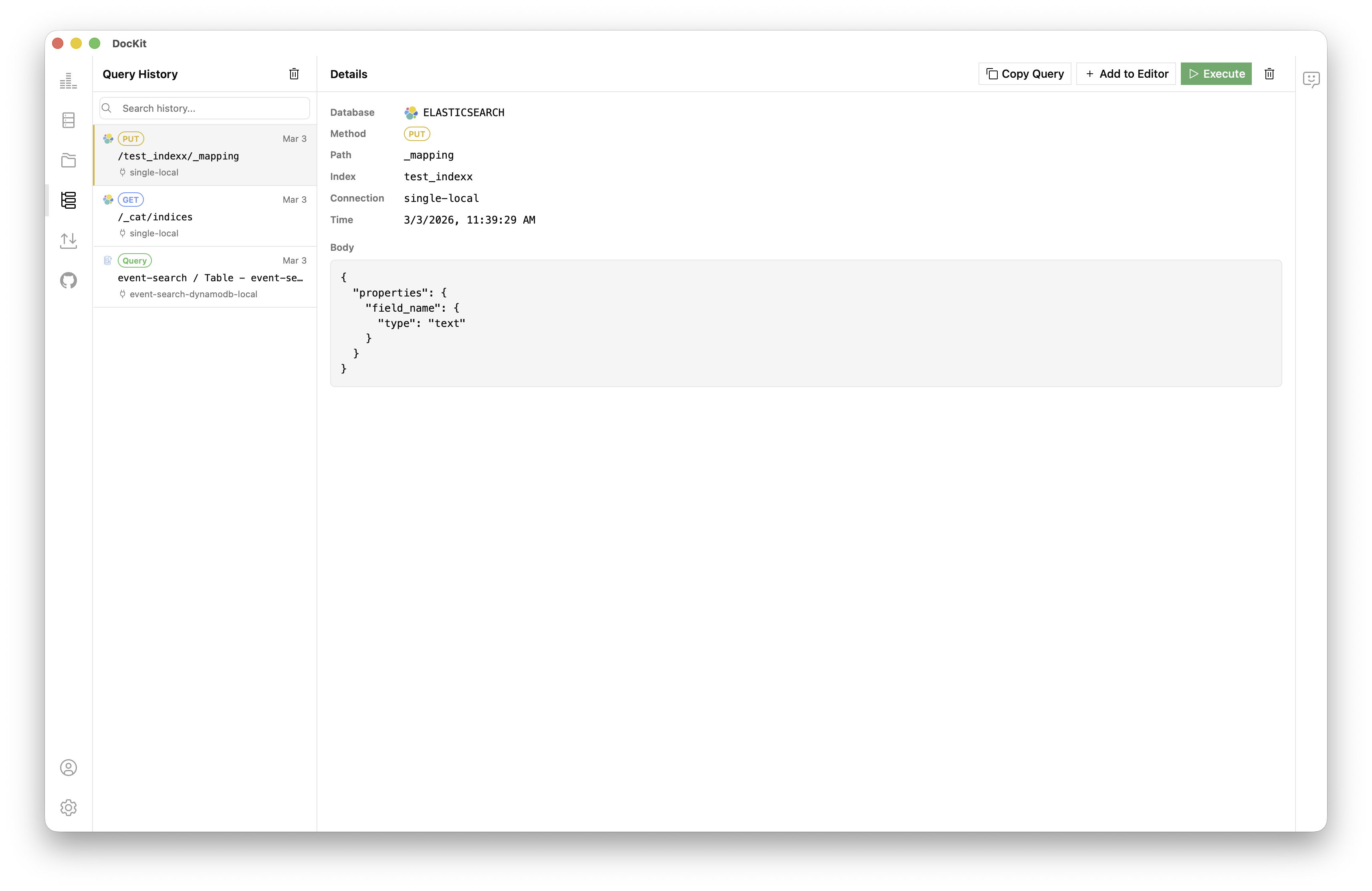
- HTTP method badge (GET, POST, PUT, DELETE) — for Elasticsearch queries
- API path — the Elasticsearch endpoint (e.g.,
/my-index/_search) - Connection name — which cluster or account was active when the query ran
- Timestamp — exact date and time the query was executed
- Query body preview — the first line of the QDSL or PartiQL statement
The panel supports search and filtering so you can quickly find a specific past query even if you have hundreds of entries.
How It Works for Elasticsearch
Every time you press Cmd/Ctrl + Enter to execute a query in DocKit's Elasticsearch editor, the query is automatically saved to your local history. The saved record includes:
- HTTP method: GET, POST, PUT, DELETE
- API path: The full path including index name and endpoint (e.g.,
my-index/_search) - Request body: The complete QDSL (Query DSL) payload
- Connection: The name of the Elasticsearch connection used
- Timestamp: ISO 8601 date/time
History is capped at 500 entries per connection. When the limit is reached, the oldest entries are automatically removed to make room for new ones. This keeps the history panel fast and focused on your recent work.
Example of a saved Elasticsearch query:
POST my-index/_search
{
  "query": {
    "bool": {
      "must": [
        { "match": { "status": "active" } },
        { "range": { "created_at": { "gte": "now-7d" } } }
      ]
    }
  },
  "aggs": {
    "by_category": {
      "terms": { "field": "category.keyword" }
    }
  }
}
This full query — method, path, and body — is saved and available in the history panel immediately after execution.
How It Works for DynamoDB
DynamoDB query history works similarly but captures both types of DynamoDB queries that DocKit supports:
PartiQL Queries
When you execute a PartiQL statement in DocKit's DynamoDB PartiQL editor, the full statement is saved to history:
SELECT * FROM Orders
WHERE CustomerId = 'C001'
  AND OrderDate BETWEEN '2025-01-01' AND '2025-12-31'
The saved record includes the full PartiQL text, the table name (extracted from the statement), and the connection/region.
UI Form Queries
When you use DocKit's visual query builder to query a DynamoDB table — selecting partition key, sort key, and filter expressions through the UI — the resulting query parameters are also recorded. The history entry captures:
- Table name
- Partition key value
- Sort key condition (if used)
- Filter expression
- Index used (primary or GSI)
This means even queries built through the GUI are preserved and can be replayed later.
Actions from the Query History Panel
Once a query is in your history, you have several options:
Copy
Click the Copy icon to copy the full query (method + path + body for Elasticsearch, or statement for DynamoDB) to your clipboard. Paste it anywhere — your editor, a Slack message, a document.
Add to Editor
Click Add to Editor to insert the query directly into the active editor tab. The editor opens with the method, path, and body pre-filled. You can then modify and re-execute as needed. This is the fastest way to pick up where you left off.
Execute
Click Execute to immediately re-run the query against the current connection. DocKit executes the query exactly as it was originally written, with the same method, path, and body. Results appear in the output panel.
Delete
Click the Delete icon on an individual history entry to remove it. This is useful for cleaning up accidental or irrelevant queries.
Clear All
Use the Clear All option to wipe the entire query history for the current connection. A confirmation dialog prevents accidental deletions.
Privacy: All Data Stored Locally
A key design principle of DocKit is local-first data storage. Your query history is:
- Stored on your machine in a local database file — not in the cloud, not on our servers.
- Never transmitted to any third party, including DocKit's maintainers.
- Fully under your control — you can find and delete the history files directly from your filesystem at any time.
- Connection-scoped — history for your production cluster is separate from history for your staging cluster.
This matters for teams working with sensitive data. Queries often contain field names, values, and patterns that reveal information about your data model. Keeping history local ensures that information stays within your team's control.
Query History vs. Manual Query Libraries
| Approach | Automatic | Searchable | No Friction | Local |
|---|---|---|---|---|
| DocKit History | ✅ | ✅ | ✅ | ✅ |
| Text file / notes | ❌ | Limited | ❌ | ✅ |
| Git query library | ❌ | ✅ | ❌ | ✅ |
| Cloud query tool | ❌ | ✅ | Varies | ❌ |
The key differentiator is that DocKit history is automatic. You never have to decide whether a query is worth saving — every query is saved by default, and you can delete the ones you do not need.
Who Benefits Most
Query history is especially valuable for:
- Developers debugging production issues who run many variations of a query and need to revisit an earlier version.
- Data analysts who run complex aggregations repeatedly with slight parameter changes.
- DevOps engineers who execute the same cluster management queries across environments.
- Onboarding engineers who build up a personal library of useful queries as they learn a codebase.
Getting Started with Query History
Query history is available in the latest version of DocKit and requires no configuration. It is enabled by default for all connections.
- Download DocKit — Free for macOS, Windows, and Linux.
- Connect to your Elasticsearch, OpenSearch, or DynamoDB instance.
- Execute any query — it is automatically saved.
- Open the History panel from the sidebar to view your query history.
For detailed usage instructions, see the Query History documentation.
Per-Database Landing Pages
- Elasticsearch GUI Client — Full guide to DocKit for Elasticsearch
- OpenSearch GUI Client — OpenSearch-specific setup and comparisons
- DynamoDB GUI Client — DynamoDB PartiQL editor, table browser, and more