
DocKit Import & Export - Seamlessly Move Data Across NoSQL Databases
Moving data in and out of NoSQL databases is a routine but painful task. Cluster migrations, test data seeding, pre-upgrade backups — these all require a reliable way to transfer data without writing custom scripts or fighting with cloud consoles. DocKit's import/export feature handles this directly in your desktop client, with no data leaving your machine.
What Formats DocKit Supports
DocKit's import/export engine supports three widely-used data formats:
| Format | Import | Export | Best For |
|---|---|---|---|
| JSON | ✅ | ✅ | Human-readable, full-fidelity data |
| CSV | ✅ | ✅ | Spreadsheet workflows, flat data |
| JSONL | ✅ | ✅ | Large-scale ES/OpenSearch migrations |
JSON preserves nested objects, arrays, and all native data types. It is the most reliable format for round-tripping data between NoSQL databases.
CSV is ideal for flat data that needs to be opened in a spreadsheet, shared with non-engineers, or imported into analytics tools. DocKit automatically handles column mapping and type coercion during import.
JSONL format uses one JSON object per line, following the native Elasticsearch _bulk API structure — each line alternating between an action/metadata JSON object and a source JSON object. This format is the fastest way to load large volumes of data directly into Elasticsearch or OpenSearch.
How to Export Data from Elasticsearch / OpenSearch / DynamoDB
Exporting an index or table from DocKit is a straightforward process:
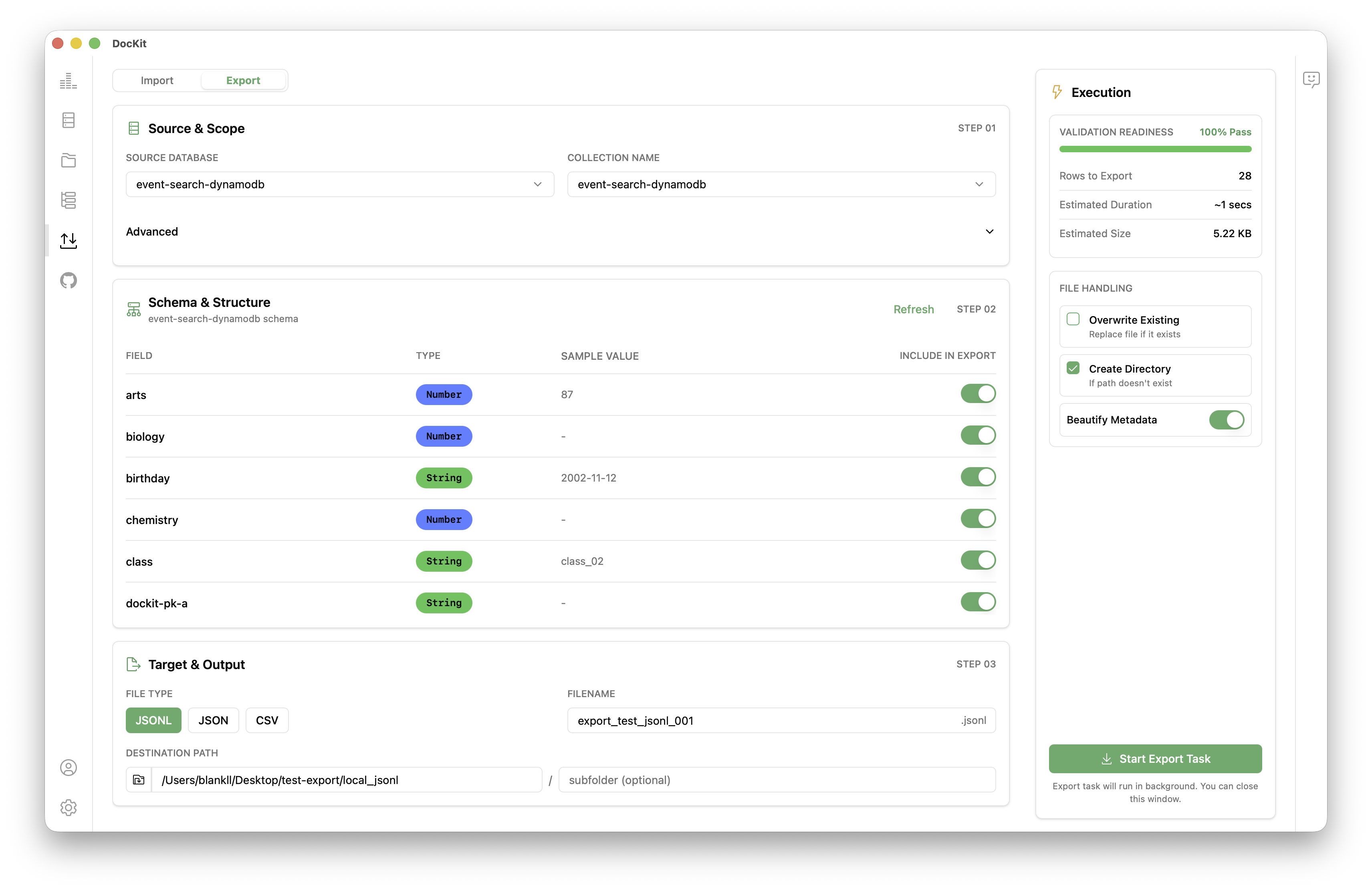
- Open DocKit and connect to your Elasticsearch, OpenSearch, or DynamoDB instance. See the connection guide if you need help.
- In the left sidebar, click the Import/Export icon to open the Import/Export panel, then select the Export tab to export data.
- select the SOURCE DATABASE and COLLECTION NAME for the target data you want to export
- Choose your output format: JSON, CSV or JSONL format
- Choose an output path on your local filesystem.
- Optionally apply a query filter (Elasticsearch / OpenSearch) or a filter expression (DynamoDB) to export only a matching subset of documents or items.
- Click Export. DocKit streams data and writes it to disk. A progress bar shows the number of documents exported.
Tips:
- For large Elasticsearch / OpenSearch indices and DynamoDB tables, use JSONL format — DocKit uses the scroll API internally so even very large indices are exported reliably without hitting memory limits.
- Exported JSON preserves native attribute types (Elasticsearch field types and DynamoDB types such as
S,N,BOOL,L,M) so data can be round-tripped accurately.
How to Import Data into Elasticsearch / OpenSearch / DynamoDB
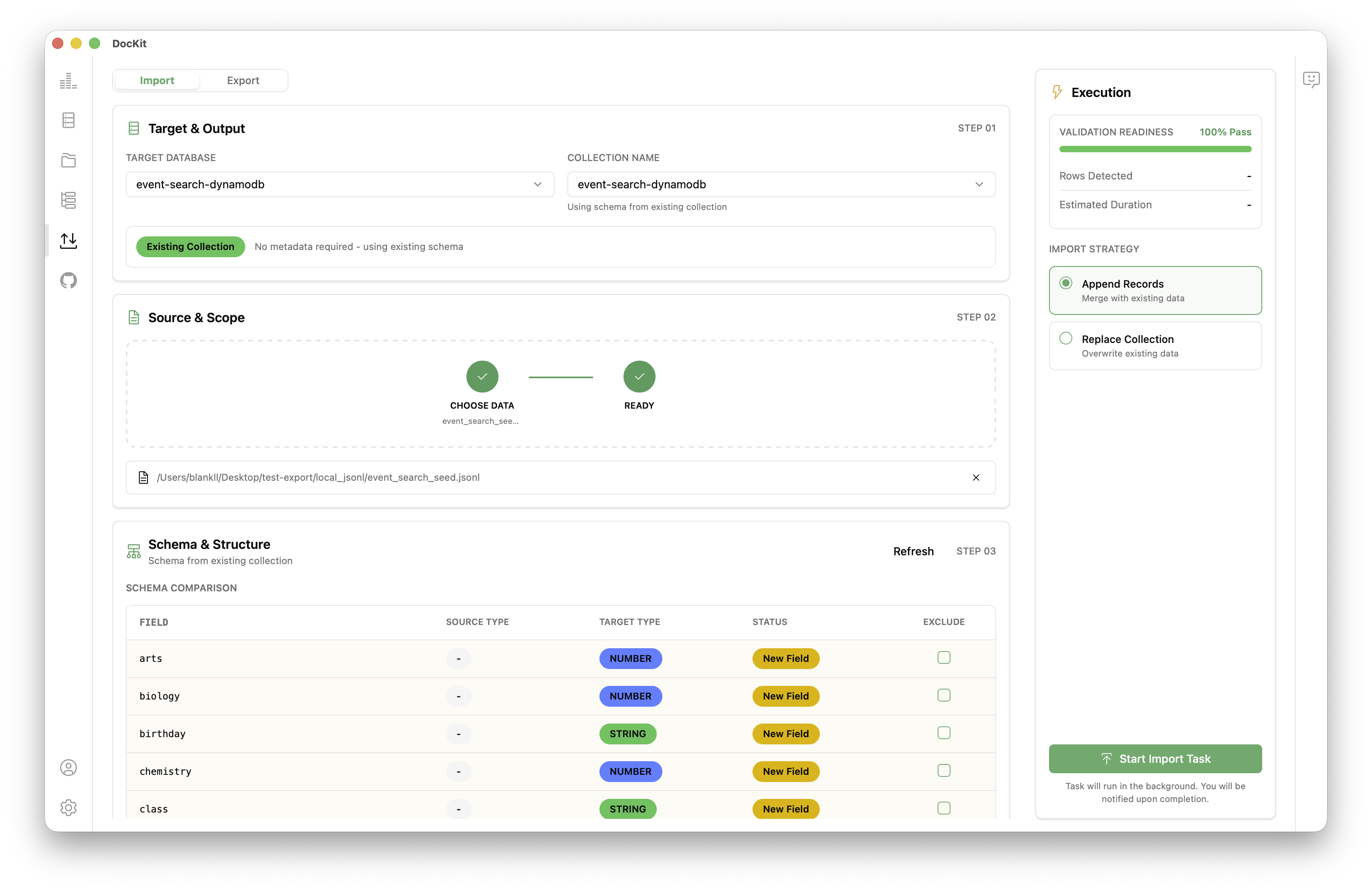
- Open DocKit and connect to your Elasticsearch, OpenSearch, or DynamoDB instance. See the connection guide if you need help.
- In the left sidebar click the Import/Export icon to open the Import/Export panel, then select Import.
- Select the TARGET DATABASE and COLLECTION NAME for the destination you want to import into.
- Choose the source file on your filesystem. Supported formats: JSON, CSV, or JSONL
- DocKit automatically detects the file format. For CSV files, a column mapping dialog lets you map columns to field or attribute names and types.
- Click Import. DocKit sends data using the
_bulkAPI (Elasticsearch / OpenSearch) orBatchWriteItem(DynamoDB) in parallel, respecting rate limits. A real-time progress indicator shows imported document count and any errors.
Handling import errors:
- DocKit logs any failed items with their primary key and error reason to an error log file alongside the import file.
- You can retry failed items by importing the error log file directly — DocKit recognises its format.
DocKit Import/Export vs. Other Tools
| Tool | Elasticsearch | DynamoDB | GUI | Free |
|---|---|---|---|---|
| DocKit | ✅ | ✅ | ✅ | ✅ |
| elasticdump | ✅ | ❌ | ❌ | ✅ |
| AWS DMS | ✅ | ✅ | ✅ | ❌ |
| AWS Console | ❌ | Limited | ✅ | ✅ |
| Custom scripts | ✅ | ✅ | ❌ | ✅ |
DocKit's advantage is the combination of multi-database support, a graphical interface, and zero cost. You do not need to install Node.js for elasticdump, configure AWS Database Migration Service, or write and maintain custom code.
Common Use Cases
Modern development teams work across multiple environments: local development, staging, pre-production, and production. Keeping data consistent across these environments — or moving a representative snapshot of production data into a lower environment for testing — is a frequent and painful task. Common scenarios where import/export is essential:
- Cluster migrations: Moving from Elasticsearch 7 to Elasticsearch 8, or from a self-hosted cluster to a managed cloud offering like Amazon OpenSearch Service.
- Test data seeding: Populating a staging index or DynamoDB table with realistic data before a QA sprint.
- Pre-upgrade backups: Exporting a full index or table snapshot before running a risky schema change.
- Cross-region replication: Bootstrapping a new region with an existing data set.
- Data sharing: Handing off a dataset to a colleague or client in a standard format like JSON or CSV.
Migrate Between Clusters
The most common use case for import/export is cluster migration. For example, upgrading from Elasticsearch 7 to Elasticsearch 8 without an in-place rolling upgrade:
- Export all indices from the old cluster in JSONL format.
- Create the new indices on the Elasticsearch 8 cluster with the desired mappings.
- Import the exported files into the new cluster.
- Validate document counts and spot-check records.
- Switch your application traffic to the new cluster.
Seed Test Data
QA teams frequently need realistic data in staging environments. With DocKit:
- Export a sample of production data (use a query filter to limit to non-PII records or anonymised data).
- Import it into the staging index or DynamoDB table before a QA sprint.
- Re-seed before each release cycle.
Back Up Before Upgrades
Before any risky operation — mapping changes, index restructuring, major version upgrades — export a full snapshot:
- Export the affected index/table to JSON.
- Store the export file in a secure location (S3, Git LFS, etc.).
- Proceed with the operation. If something goes wrong, import the backup to restore.
Share Data With Colleagues
Export a small dataset as JSON or CSV and share it via email, Slack, or your preferred channel. The recipient can import it into their own DocKit instance in seconds.
Getting Started
- Download DocKit — Available for macOS, Windows, and Linux.
- Follow the Import & Export Guide for step-by-step instructions.
- Check the Connect to Server guide to set up your database connections.
Per-Database Landing Pages
- Elasticsearch GUI Client — Full guide to DocKit's Elasticsearch features
- OpenSearch GUI Client — OpenSearch-specific setup and workflows
- DynamoDB GUI Client — DynamoDB table management, PartiQL editor, and more