
Connect Codex to your databases with Data Studio Agent
You're fixing an API endpoint in Codex and need to check the orders table before changing a query. Usually, that means opening a database client, inspecting the schema, and pasting the results back into Codex.
We built Data Studio Agent so Codex can inspect schemas and run queries through SqlKit and DocKit while you work on the code. Codex and its underlying model use connection IDs; the desktop apps handle your database credentials and control which operations are allowed.
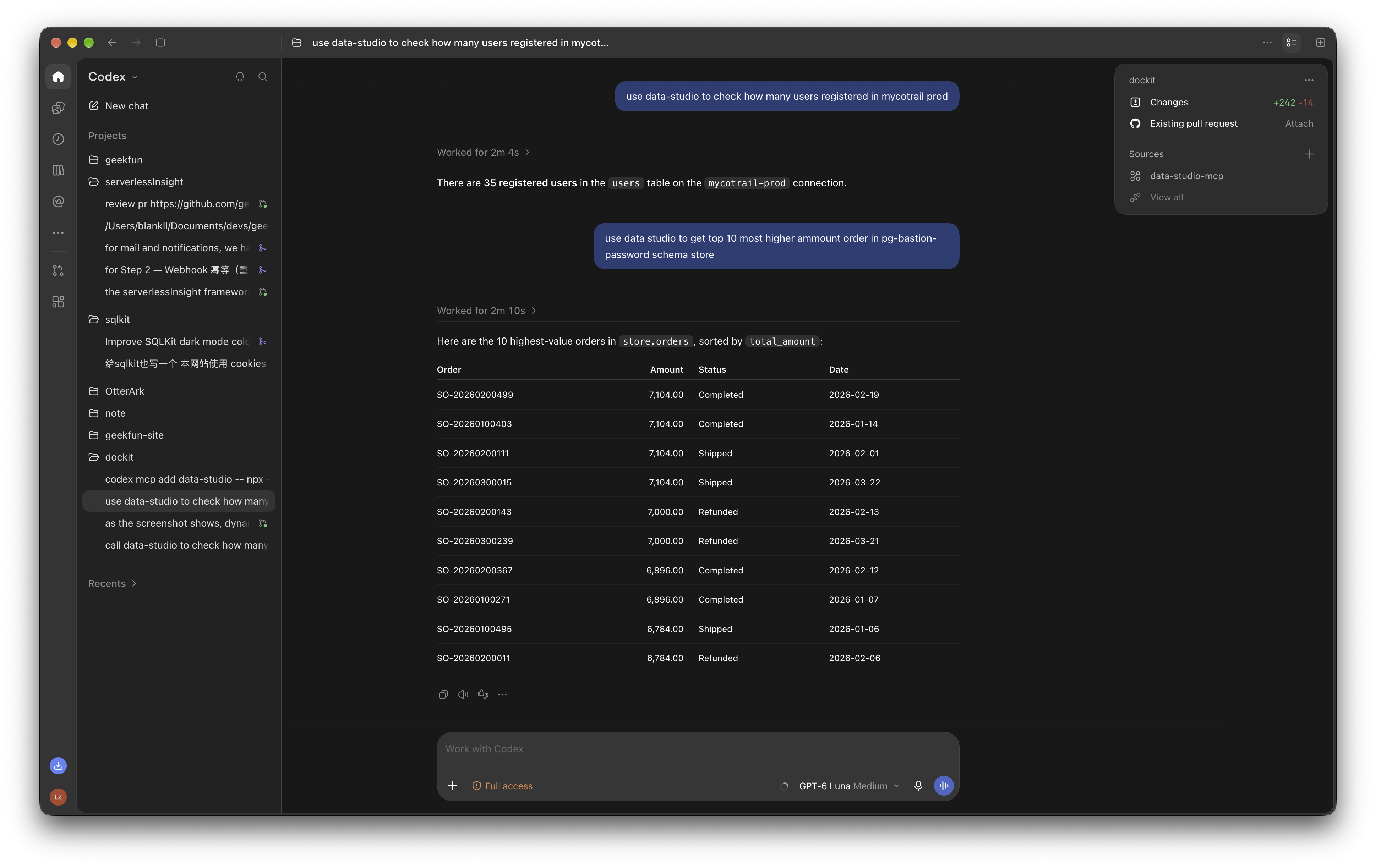
To give Codex database superpowers, paste this command into your Codex conversation:
codex mcp add data-studio -- npx -y @geek-fun/data-studio-mcpHow the connection works
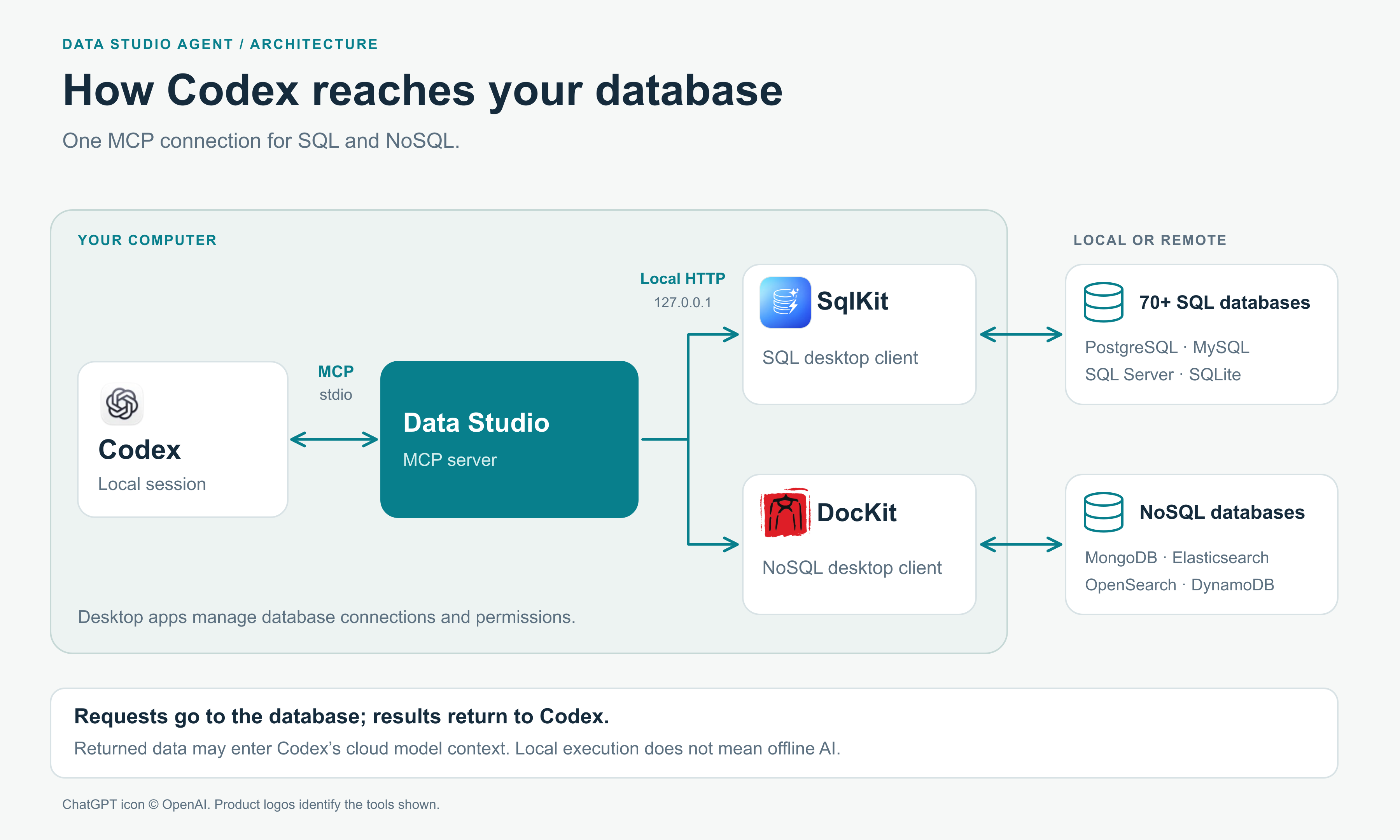
Data Studio Agent connects AI coding tools to two desktop applications:
| Desktop app | Use it for |
|---|---|
| SqlKit | SQL databases such as PostgreSQL, MySQL, SQL Server, and SQLite |
| DocKit | NoSQL databases such as MongoDB, Elasticsearch, OpenSearch, and DynamoDB |
Install whichever app matches your database, or run both if your project uses SQL and NoSQL. Add your database connections in the corresponding app and enable its MCP Bridge so Data Studio can route queries to those connections.
One MCP server discovers the running desktop apps and makes their database tools available to Codex. You can still use either app to browse data and run queries yourself.
Set up your first connection
You'll need Codex CLI and Node.js with npm/npx installed. Run Codex locally on the same computer as the desktop apps.
1. Prepare SqlKit or DocKit
Download SqlKit for SQL or DocKit for NoSQL, then:
- Launch the app and sign in with an account that has MCP access.
- Add a database connection and verify that you can query it in the app.
- Open Settings → MCP Bridge and enable the bridge. Enable Auto-start if you want it to start with the app.
- Select Read Only for your first session and allow access to the connection you want to explore.
Keep the desktop app running while Codex uses its tools. Start with a development database and sample data.
2. Register Data Studio in Codex
Run this in your terminal:
codex mcp add data-studio -- npx -y @geek-fun/data-studio-mcpCodex saves the configuration and starts the MCP process when it connects. It handles the process for you, so you can close the setup terminal.
To expose only tools classified as safe, use this command instead:
codex mcp add data-studio -- npx -y @geek-fun/data-studio-mcp --readonlyWith --readonly, the MCP server restricts the available tools in addition to the desktop app's permissions.
Confirm the registration:
codex mcp listStart a fresh Codex session after adding the server. In the Codex terminal interface, /mcp shows the active MCP servers. OpenAI documents these commands in its MCP setup guide.
3. Check the connection from Codex
Ask:
Use Data Studio to check backend availability and list the database connections I can access. Do not run any writes.
Codex can call data_studio__get_status to check the backends and data_studio__list_connections to find connections. Check the returned connection name before asking it to run a query.
Try it on an API bug
Suppose your orders endpoint returns an empty list, though you expect paid orders to exist. Try investigating it with these prompts, replacing the connection and table names with your own.
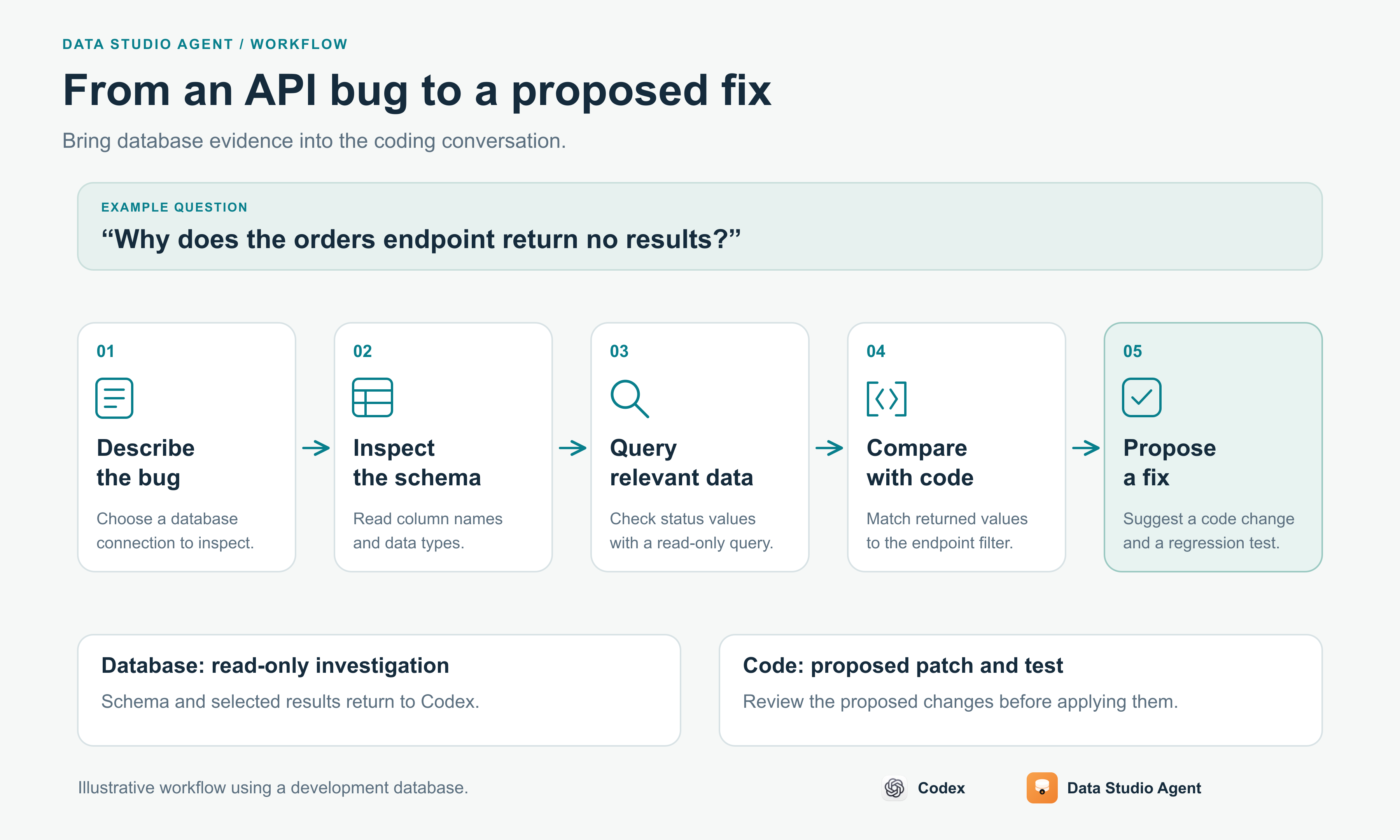
Start by checking the schema:
Use Data Studio with my PostgreSQL development connection. Inspect the
orderstable and summarize its columns and types. If several connections match, ask me which one to use. Keep all database operations read-only.
Then investigate the filter:
Check the distinct values in
orders.statusand their counts. Compare them with the status filter in this repository's orders endpoint. Show the SQL you use and explain any mismatch you find.
Codex can compare those results with the repository code. If it finds a mismatch, ask:
Propose a code fix based on those results and add a regression test. Do not change any database records.
Codex gets the schema and query results directly, so you can keep working on the endpoint. You can also run the query yourself in the desktop client.
For an Elasticsearch investigation, keep DocKit running and ask:
Inspect the mapping for my development Elasticsearch orders index. Check how
customer_idis mapped and compare that with the query in this repository. Explain any incompatibility before suggesting a change.
Or explore a MongoDB collection:
Use my development MongoDB connection to inspect the orders collection. Return only
_id,status, andcreated_atfrom up to five documents so I can check their types.
The running backend and its permissions determine which operations are available. Request only the fields and rows you need.
What runs locally, and what Codex receives
The MCP process and desktop bridge run on your computer. SqlKit or DocKit handles the database connection; tools use its connection ID, so you don't need to paste a database password into Codex.
Returned rows and schema information go back to Codex. If you're using a cloud model, that information can enter its context. Choose connections and fields with that in mind; the bridge runs locally, but the AI session can still use a remote model.
Keep Read Only enabled for your first session, using a database account with read permissions. If you need broader access later, change it in the desktop app. Prompts describe what you want Codex to do; application permissions determine what the backend allows.
If your database tools don't appear
codex mcp list confirms that the server is configured. A Data Studio status request checks whether the desktop backends are available. A successful registration alone doesn't tell you whether the apps are running.
| What you see | What to check |
|---|---|
npx cannot be found | Make Node.js/npm available to the environment launching Codex. |
| Data Studio responds, but no backend is available | Launch SqlKit or DocKit and enable its MCP Bridge. |
| The connection you want is missing | Verify the connection in the desktop app and check its MCP access settings. |
| An operation is denied | Check the account's MCP access and the app's permission mode. |
| A remote session cannot reach the app | Run Codex locally on the machine hosting the desktop bridge. |
After fixing the setup, ask Codex to call data_studio__get_status again. If the tools still don't appear, start a fresh local session.
Try it on your own project
Connect a development database and give Codex a question from your current work. Check a status filter against the stored values, or ask it to compare a field mapping with the code that queries it.
Get started with SqlKit or DocKit, then follow the Data Studio Agent setup. The MCP package is on npm, and the source and issue tracker are on GitHub.
If a database or workflow you need is missing, open an issue with the database type, the task you tried, and a sanitized example.