
DocKit Agentic Data Studio
DocKit's Agentic Data Studio is a data AI agent that talks to your databases in natural language. Tell it what you need and it writes queries, inspects schemas, updates documents, deletes records, or creates indexes — all in one conversation.
The Sidebar Assistant gives you the same AI in a chat panel, so you can ask questions and generate queries without switching views.
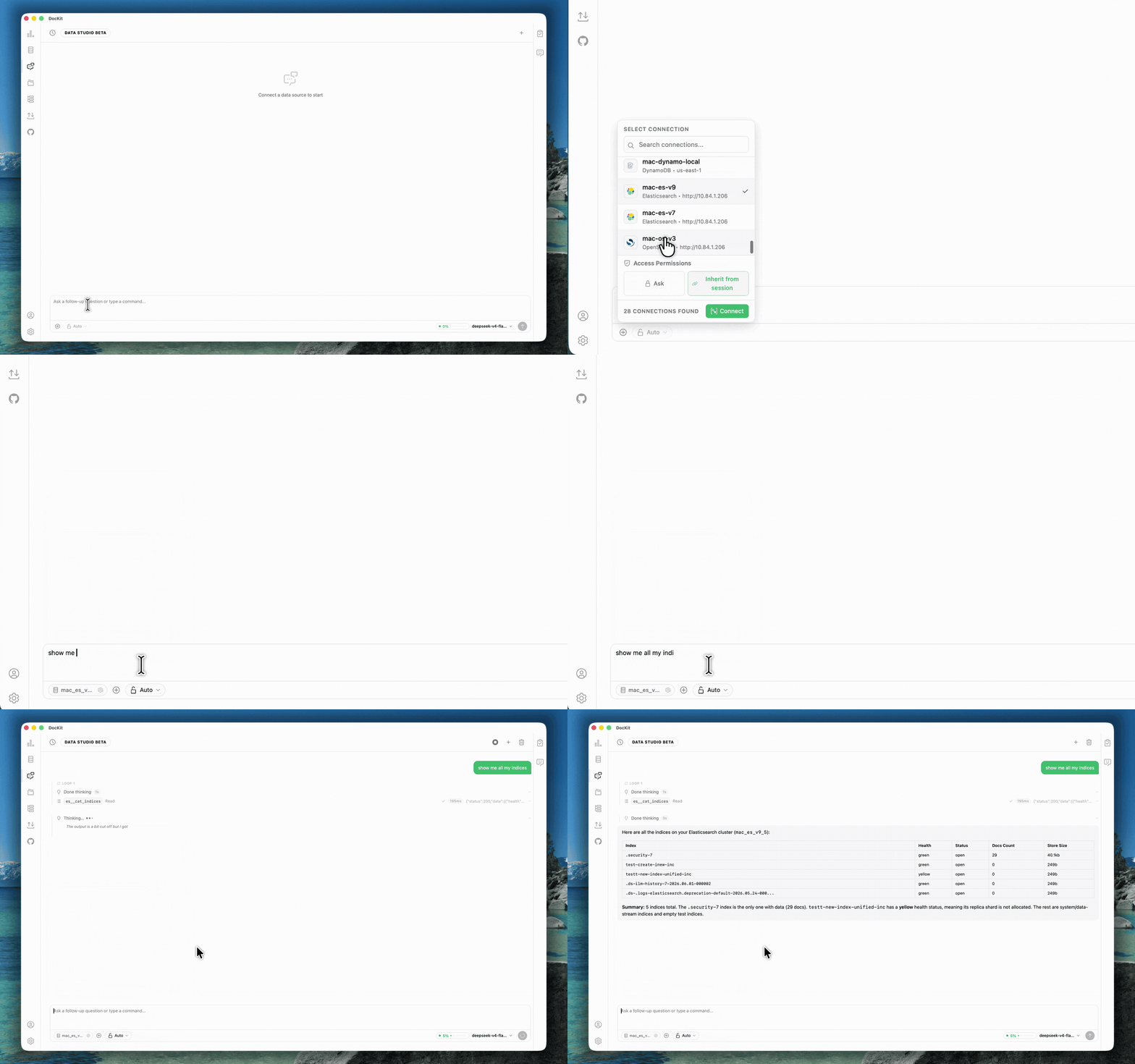
What the Agent Can Do
The agent has tools for every supported database:
| Database | Capabilities |
|---|---|
| Elasticsearch / OpenSearch / EasySearch | Search, get, index, update, delete documents · List indices, get mappings, create/delete indices · Manage aliases (list, get, create, delete, bulk update) · Add or update field mappings |
| DynamoDB | Execute PartiQL queries (SELECT, INSERT, UPDATE, DELETE) · Describe and list tables |
| MongoDB | Find documents, run aggregation pipelines · Insert, update, delete documents · List databases and collections |
Each tool has a risk level (Safe for read-only, Elevated for create/update, or Destructive for delete) and needs the matching permission to run.
Quick Start
Open Settings → LLMs and add an AI provider (OpenAI, Anthropic, DeepSeek, or any of the 12 supported). Then open Data Studio from the Nav bar, click Add Source to attach a database connection, and type your request in plain English.
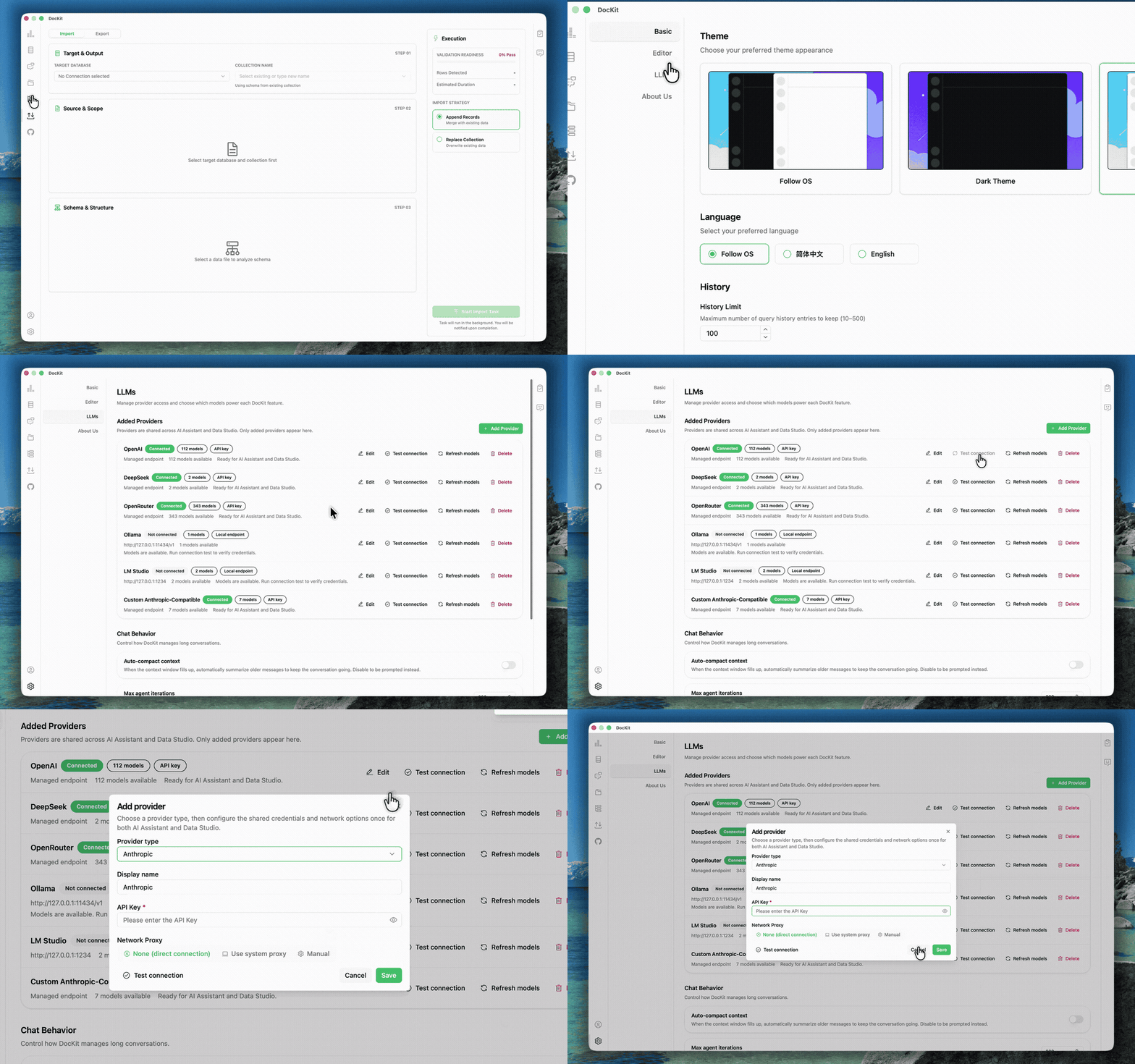
For quick questions without leaving your editor, use the Sidebar Assistant — click the chat icon (💬) in the sidebar.
Safety & Permissions
| Mode | How tools run | Risk level | Requires confirmation |
|---|---|---|---|
| Ask (default) | Prompts Allow/Deny before every non-read tool | Safe — read queries, list indices, describe tables | Never |
| Auto | Executes automatically when session has permissions | Elevated — create/update documents, insert items | Only in Ask mode |
| Destructive — delete documents, drop indices, delete tables | Always |
You can also set read/create/update/delete permissions per database source, or inherit from the session level. Confirmation rules let you auto-allow safe or repetitive operations, or auto-deny dangerous tools entirely.
Agent Loop
The agent runs in a loop: it thinks, calls tools, checks the results, and decides what to do next. Three settings control how long it runs: max iterations (default 200) limits the number of tool-call rounds, wall-clock budget (default 30 minutes) caps elapsed time, and token budget (default 1,000,000) limits cumulative input tokens. If any budget runs out, the agent stops with an explanation and offers to continue.
Long conversations get compacted automatically — old messages are summarized into a compact form that keeps the important bits while cutting token usage. Compaction markers show up in the chat timeline so you can see what got rolled up.
The agent shows its current phase as it works:
Preparing → Iterating → Waiting for model → Compacting → DoneEach tool call displays its name, arguments, runtime, and result. Expand any tool call to see the full output.
Source Management
Attach any configured database connection as a Data Studio source. The agent reads schemas, queries data, and writes changes based on the permissions you set. You can also attach local files as read-only sources — CSV, Excel, JSON, and Parquet. The agent can inspect and query file contents but can't modify them.
Session Management
Each Data Studio conversation is a session with its own history, attached sources, and settings. Browse and switch between past sessions from the history panel, start a clean conversation with a new session, detach a source without deleting the underlying connection, or pick a different model per session.
Sidebar Assistant
The Sidebar Assistant is a lightweight chat panel accessible from anywhere in the app. It is separate from Data Studio — it works as a single-turn Q&A interface rather than a multi-step agent loop.
Use it to ask questions about your database schema or query results, generate queries using your schema as context, get explanations of query behavior and error messages, or debug without leaving your current view.
| Feature | Sidebar Assistant | Data Studio |
|---|---|---|
| Interaction | Single Q&A turns | Multi-step agent loop |
| Tool execution | No — text responses only | Yes — reads schemas, runs queries, modifies data |
| Context | Current conversation only | Full session with history and compaction |
| Source attachment | No | Yes — attach multiple databases per session |
| Best for | Quick questions, explanations | Complex data operations and analysis |
Open it by clicking the chat icon (💬) in the right sidebar, or press the keyboard shortcut. The Assistant shares the same provider and model configuration as Data Studio. You can configure a separate model for it in Settings → AI → Models if you want a lighter model for quick Q&A while keeping a more capable model for Data Studio. Multi-chat sessions are supported with automatic provider isolation, and you can delete individual chat sessions from the history panel.
Providers & Models
DocKit supports 12+ AI provider types — cloud and local: OpenAI, Anthropic, DeepSeek, OpenRouter (200+ models), Google Gemini, Grok, Mistral, Azure OpenAI, Ollama (fully offline), LM Studio (fully offline), custom OpenAI-compatible endpoints, and custom Anthropic-compatible endpoints.
To add a provider, go to Settings → Providers and click Add Provider. Pick a type, give it a display name, enter the API endpoint (pre-filled for standard providers), paste your API key or token, and optionally configure an HTTP proxy URL. Click Test Connection to verify, then Save.
DocKit discovers available models automatically. You can route them to specific features — pick one model for the Sidebar Assistant (quick Q&A) and another for Data Studio (full agent loop). If you don't set a preference, DocKit picks the best available model.
Getting an API key:
- OpenAI: platform.openai.com → API Keys
- Anthropic: console.anthropic.com → API Keys
- DeepSeek: platform.deepseek.com → API Keys
- OpenRouter: openrouter.ai → Keys
- Ollama / LM Studio: Run locally, no API key needed
If you're behind a firewall, enter a proxy URL for each provider in Settings → Providers. Format: http://host:port. Or choose Use system proxy to inherit OS-level settings.
How Context Works
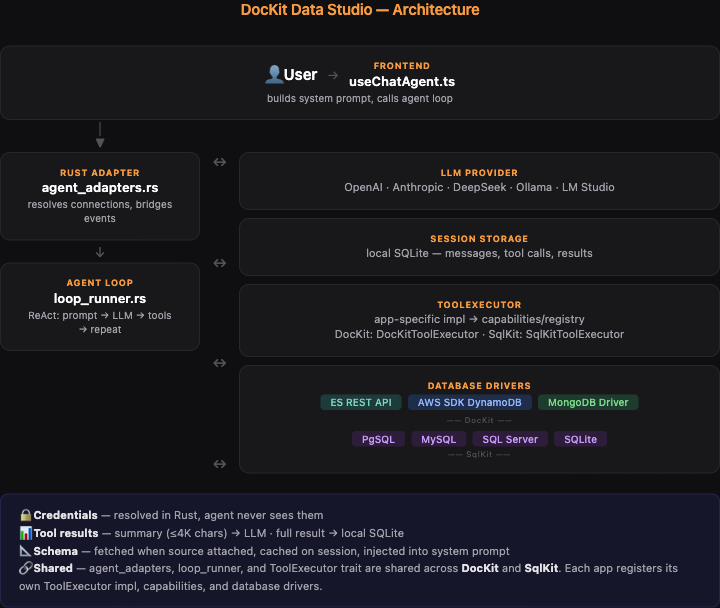
What gets sent to the LLM
When you attach a database connection, the frontend fetches schema info through capability tools (ES GetMapping, DynamoDB DescribeTable, MongoDB listCollections) and stores it on the session. This schema is injected into the system prompt:
- Source summary — which databases are attached and what permissions they grant
- Database schema — index mappings, table schemas, field names and types (no actual records)
- Database-specific rules — PartiQL syntax for DynamoDB, Query DSL patterns for ES
- Tool definitions — which operations the agent is allowed to call, with input schemas
When the agent calls a tool, only a summary (≤4K chars) of the result goes back to the LLM — enough to decide the next action. The full result (≤32K chars) stays in local SQLite. Your document data is never sent to the LLM unless you explicitly reference it in your prompt.
What stays on your machine
- Credentials — resolved from the OS keychain in the Rust backend. The agent never sees passwords, API keys, or AWS secrets. It passes a
connection_id, and the backend maps that to the real config before running the tool. - Full query results — stored in the local SQLite database. Only a truncated summary reaches the LLM.
- Conversation history — persisted in local SQLite, never sent to any server outside your chosen LLM provider.
Privacy & Security
What the agent sends to AI providers:
- ✅ Your text prompt
- ✅ Current index, table, and collection names
- ✅ Schema and mapping (field names and types)
- ✅ Query results (truncated to about 1,024 characters, enough context for the agent to work with)
- ❌ Full query results (stored locally in DocKit's database, visible in the UI)
- ❌ Credentials (API keys, passwords, connection secrets never leave your machine)
How tool results flow to the LLM: When the agent runs a tool like es__search or mongo__find, the full result stays local. Only a short summary (around 1,024 characters) goes back to the LLM as context for its next step. Enough to work with, but not your full dataset.
Credential safety: Connection secrets live on your machine and get resolved in the Rust backend. The agent never sees them — it passes a connection_id (something like "42"), and the backend maps that to the real config before running the tool. Passwords, API keys, and AWS secrets never make it into LLM prompts.
No telemetry: DocKit doesn't phone home. No query data, credentials, or analytics leave your machine. Works fully offline with local providers like Ollama and LM Studio.
Troubleshooting
API Key Issues
If you see Invalid API key or Unauthorized, make sure the key has no extra spaces or line breaks, check it hasn't expired, verify you have enough credits or quota, and try generating a new key.
Connection Failed
For Network error or Timeout, check your internet connection, set up a proxy if you're behind a firewall, verify the API endpoint is reachable, and for local providers like Ollama or LM Studio, make sure the service is running.
Agent Stops Early
If the agent stops with an iteration cap, wall clock, or token budget message, raise the relevant budget in Settings → AI → Chat settings, simplify your request so it needs fewer tool calls, or start a new session to reset the context.
Poor Quality Responses
Try a different model — Claude for reasoning tasks, GPT-4o for general use. Be more specific in your request by including field names and index names. Break complex operations into smaller steps.
Next Steps
- Settings Guide — Configure providers, budgets, and model routing
- Connect to Server — Set up database connections for Data Studio sources
- DynamoDB GUI Client — DynamoDB features and PartiQL
- Elasticsearch GUI Client — Elasticsearch management