
Agentic Data Studio & AI Assistant
UltimateSqlKit includes two built-in AI workspaces powered by data-studio-agent and your own API key or local model server (BYOK):
- Agentic Data Studio (
/data-studio) is a full-page, multi-source agent workspace where you attach one or more saved connections, keep SQLite-backed conversation sessions (agent.sqlite), and inspect schemas across databases. - AI Assistant Sidebar is a resizable right drawer (320-600 px) inside Queries that reads your active connection, current schema, and open SQL editor contents automatically.
To connect Claude Code, OpenAI Codex, or Cursor instead, see MCP bridge & coding agents.
Configure a model provider
SqlKit ships 20 provider presets plus custom OpenAI-compatible and Anthropic-compatible endpoints. You can assign different models to the Queries Sidebar Assistant and to Agentic Data Studio.
Open AI Settings
Navigate to Settings → AI → Add Provider.
Choose a preset or custom endpoint
| Category | Built-in presets & defaults |
|---|---|
| Cloud APIs | OpenAI, Anthropic, Google Gemini, DeepSeek, Grok (xAI), Mistral, Azure OpenAI, OpenRouter, Requesty, Opper, API Route, Cheaper Inference, Runcrate, CloudGPU, MartLLM, cheapaimodel |
| Local / Offline | Ollama (default http://127.0.0.1:11434), LM Studio (default http://127.0.0.1:1234/v1) |
| Custom | Custom OpenAI-compatible or Custom Anthropic-compatible (set your Base URL and API compatibility protocol) |
Configure credentials, proxy & context window
Enter your API Key (stored locally on your machine; leave empty for local Ollama or LM Studio servers). You can also set a per-provider HTTP proxy (None, System, or Manual) and override the Context Window size for custom or fine-tuned models.
Validate and sync models
Click Save Provider, then click Test to check connectivity and Sync Models to fetch available model IDs. If an endpoint does not expose a /models list, type the accepted model IDs into Models manually.
Attach a connection and run a first conversation
Data Studio supports 41+ SQL engines: PostgreSQL and the PG-wire family, MySQL and the MySQL-wire family, SQL Server, SQLite, DuckDB, Oracle, and Dameng DM8.
Start a session & attach sources
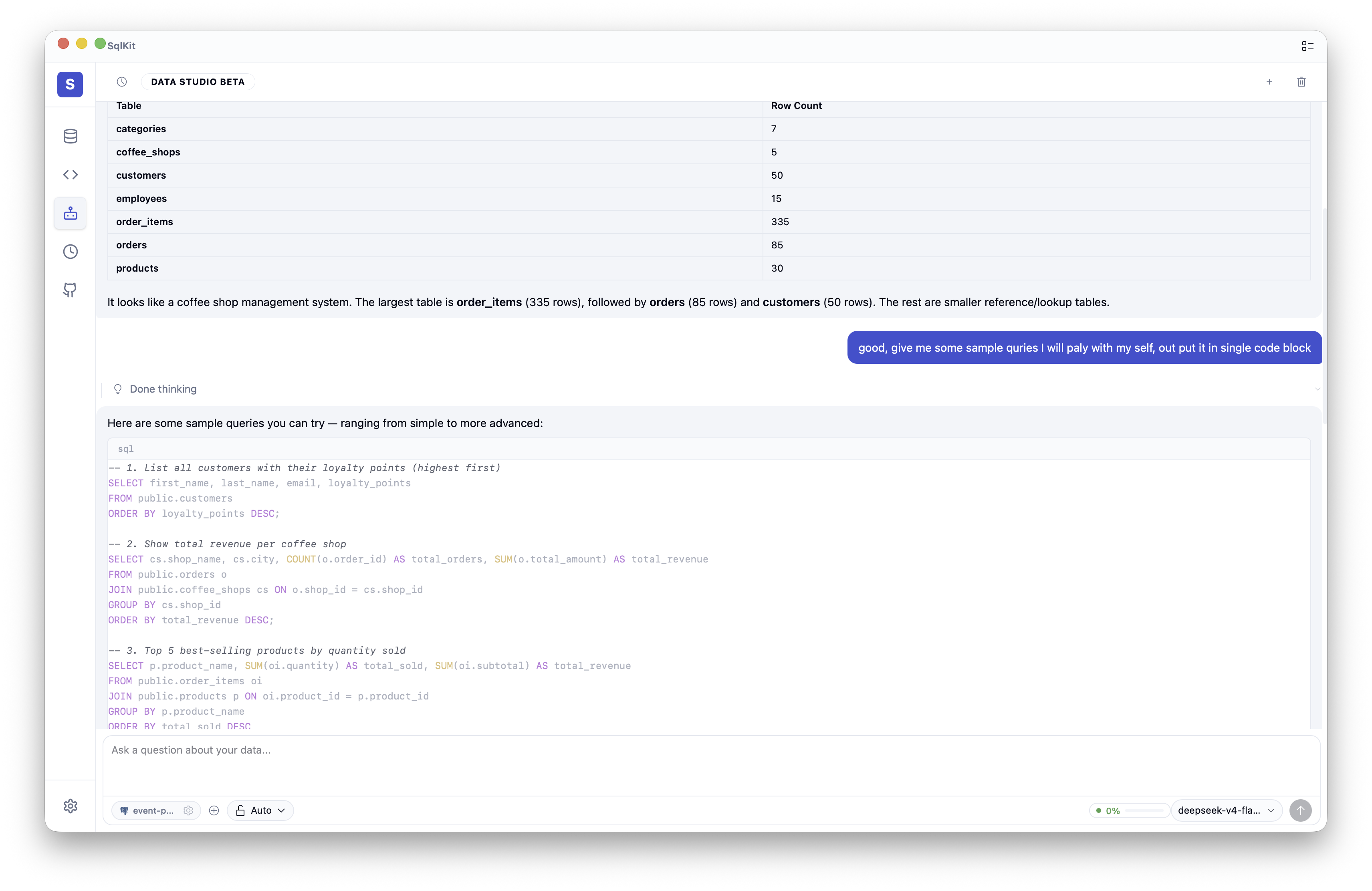
Open Data Studio, click New Session, and choose Add Data Source. Pick one or more saved connections and click Connect. Starting with a single development or read-only connection keeps the context focused.
Check permissions & select Ask mode
Verify the attached source's AI permissions, pick a model, and keep the session in Ask mode while testing the workflow.
Ask a schema-grounded question
Start with a discovery or drafting prompt, for example:
"Inspect the schema to find which table stores customer orders and which column tracks order creation dates. Draft a SQL query for monthly order volume over the past 12 months."
The agent reads live metadata through its registered tools, lets you expand full tool outputs, and drafts SQL using your real table and column names.
Review & execute safely
Check the drafted SQL, then copy or open it in Queries to run, inspect with EXPLAIN, or save as a .sql file.
Use the AI Assistant beside a query
In Queries, toggle AI Assistant from the top bar to open a resizable right sidebar (320-600 px) without leaving your active editor. The sidebar tracks your active connection, database/schema, and SQL editor contents, enforces the same per-connection AI permission policy as Data Studio, and uses its own model selector (for instance, a fast model for quick SQL edits in the sidebar and a reasoning model in Data Studio).
Context compaction, budgets & custom prompts
Configure agent limits and prompts in Settings → AI and per connection:
- A live context indicator shows how full the conversation window is. Auto-Compact (on by default) summarizes older turns before hitting context limits, and you can also compact manually anytime.
- Safety budgets cap Max Iterations (default
200), Wall-Clock Budget (default30 min), and Token Budget (default20,000,000). You can cancel an active run at any point. - Global System Prompt sets workspace-wide SQL conventions (such as qualifying schema names, preferring CTEs, or adding
LIMIT). - Per-Connection Context Prompt (under Connections → Edit → Advanced) records database-specific rules such as soft-delete columns (
deleted_at IS NULL), currency units in cents, or tenant isolation filters.
Data privacy with cloud vs. local models
Database passwords and connection secrets are never sent to any LLM. With a cloud LLM provider, your prompts plus schema metadata and query results returned by tools go to that provider's API. Use Ollama or LM Studio when all inference must stay local.
Troubleshoot setup
| Symptom | What to check |
|---|---|
| No models appear in the picker | Enable at least one provider in Settings → AI, then click Sync Models or enter model IDs manually. |
| Provider test fails | Check the Base URL, API key, and per-provider HTTP proxy settings. For Ollama or LM Studio, confirm the local server is running and the model is loaded. |
| Connection cannot be attached in Data Studio | Save and test the connection in Connections first, and confirm it is one of the 41+ engines enabled for Data Studio. |
| Agent reports an action is blocked | Click Review permissions on the blocked message or check the connection policy in AI permissions & safety. |
Next steps
Configure Read/Write/Delete/Manage rules, Ask vs. Auto, and AST write guards.
Share permitted SqlKit connections with Claude Code, Codex, and Cursor.